

A cover file is only as ready as the template beneath it and the check it passes. Build on the platform’s own, and let its system confirm the rest.
A print-ready KDP cover file is built on a template generated from your book’s own specs, saved as a single PDF, and confirmed in KDP’s Print Previewer before you call it done. A template from any other source, including another platform, doesn’t count, even when the book specs match.
Plenty of authors assume one cover template works everywhere, or that a cover built close to KDP’s spec is good enough. Neither assumption holds up once the file meets KDP’s checks.
I’m Daniel J. Middleton, and over two decades in book design and editing is enough time to run into just about every production hiccup there is — and to know the fix.
This piece covers what KDP requires in a cover file, how to build it on KDP’s own template, why that template can’t be reused on IngramSpark, and how to confirm the file is ready.
What Does KDP Require in a Paperback Cover File?
KDP’s own help page sets out the requirements, and these are the ones worth checking first:
One single PDF. The back cover, spine, and front cover go into one file as one image.
Bleed on three sides. Backgrounds and images extend 0.125 inch past the trim on the top, bottom, and outside edges.
High-resolution CMYK images. Images are placed at 100 percent, flattened, and at 300 DPI or higher.
A clean file. Fonts are embedded, transparencies are flattened, and crop marks and template text are removed.
Specs like these change, so check KDP’s current Create a Paperback Cover page before you build.
How Do You Build a Cover File on KDP’s Own Template?
Start from KDP’s cover calculator and template generator, not from a template downloaded elsewhere or a cover sized by hand. You enter your ink and paper choices, trim size, and page count, and it generates a layout for that specific book.
The layout marks the full cover size, the safe area, the bleed, the spine, and the barcode margin. You build inside those lines, then export a single PDF. Because the spine depends on page count, a change to the page count means a new template.
For the spine measurement specifically, how to calculate spine width for a KDP paperback walks through the Cover Calculator step by step.
Can You Use the Same Cover Template for KDP and IngramSpark?
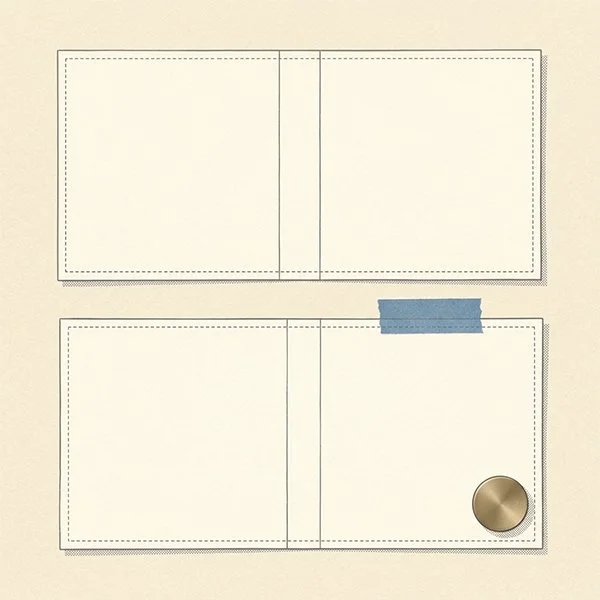
No. If you plan to publish on both, each platform needs its own cover file built on its own template, even when the page dimensions, paper color, and page count are identical.
I don’t have an explanation for why the two differ, and the rule doesn’t depend on one. A KDP cover has to be built on KDP’s template for that book’s current specs.
IngramSpark’s File Creation Guide points the same direction. It says cover artwork belongs on the template its own generator produces, and the barcode is the only element you may reposition.
In practice, that means building two separate cover files, one on each platform’s template.
How Do You Confirm a KDP Cover File Is Print-Ready?
Upload it and run it through KDP’s Print Previewer. KDP’s help pages say the Previewer checks for errors you need to fix before you can submit for publication, and its main checks include cover size, margins, and fonts.
A cover that looks right in your design software hasn’t been confirmed by anything yet. If the Previewer flags a problem, fix the source file, upload it again, and rerun the check.
Print-ready is a verdict the printer’s system gives your file, not something a good-looking cover can claim for itself.
What Should You Do Before Building a KDP Cover File?
Generate the template from KDP’s cover calculator with your final trim size and page count, and build on that instead of reusing a cover from anywhere else. If you plan to print through IngramSpark too, generate that platform’s template separately and build its cover on that, rather than reusing your KDP file.
If you’d rather have each cover file built on the right template and checked before upload, the get-started page is where to begin.