
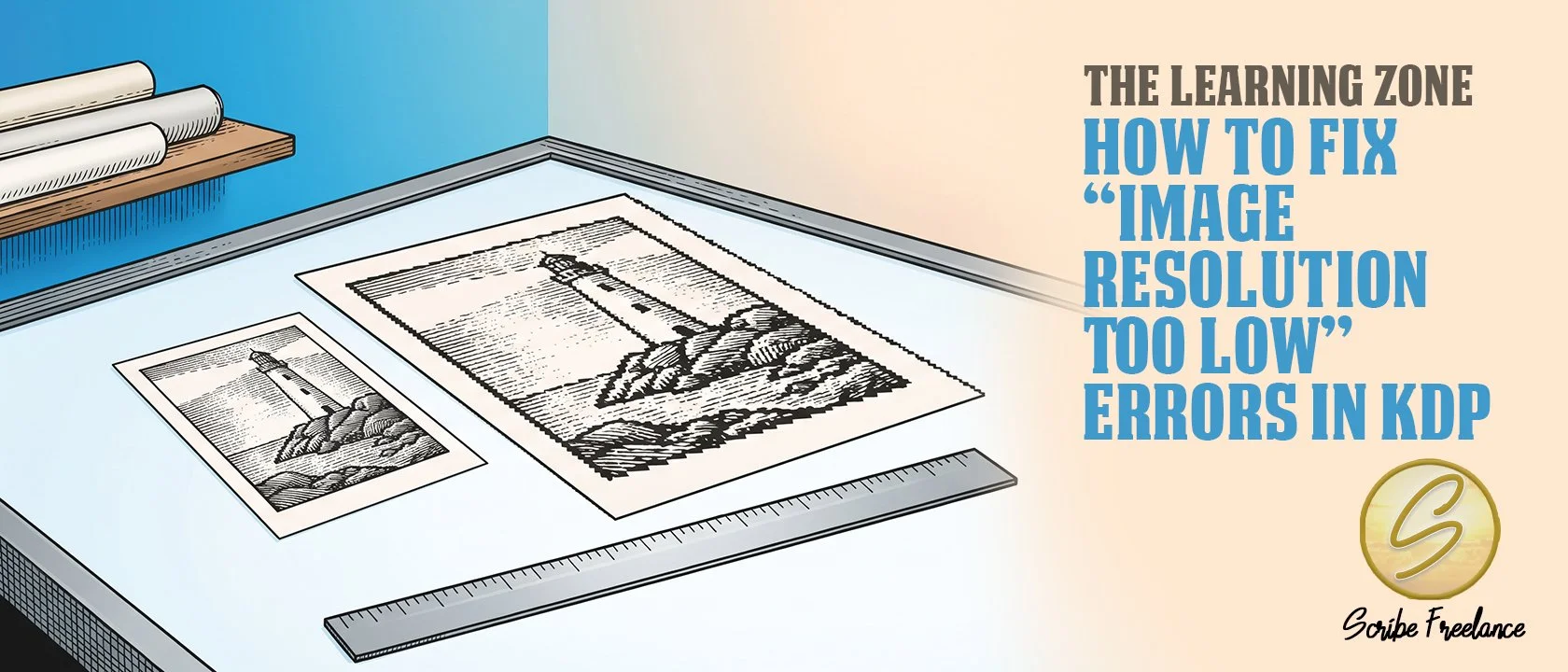
A resolution warning measures an image against the size it prints at. Source the image right, and there’s nothing to click past.
To fix an “image resolution too low” error in KDP, replace the flagged image with a genuinely higher-resolution original, or print it smaller, until it reaches at least 300 DPI at its placed size. It isn’t a KDP quirk, since IngramSpark and Lightning Source flag the same problem.
Plenty of authors treat the alert as a one-platform annoyance and click past it, which leaves the underlying problem sitting in the file.
My name is Daniel J. Middleton — I’ve spent over two decades in book design and editing, long enough to know most “mistakes” are really a process nobody walked the author through.
This piece covers what the warning means, why some low-resolution images still print acceptably, how to fix the flagged images, and how to stop the warning from firing in the first place.
What Does an “Image Resolution Too Low” Warning in KDP Actually Mean?
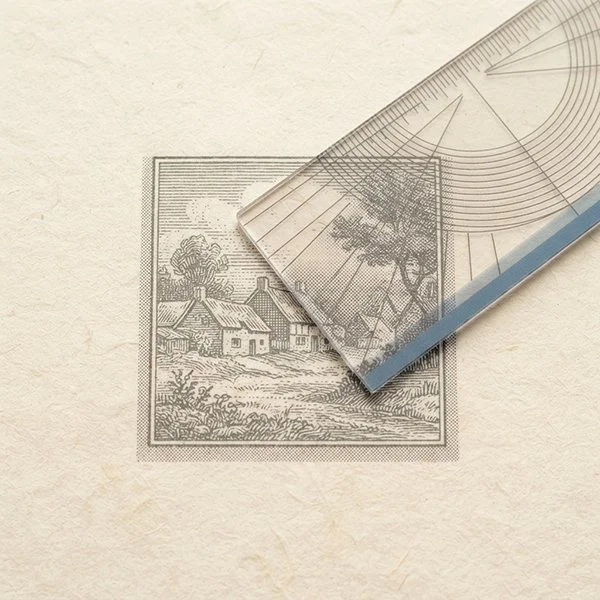
It means an image has too few pixels for the size it’s printed at. Resolution is measured at the placed size: the pixel count divided by the inches.
KDP’s own help page recommends 300 DPI at minimum and describes anything under 200 DPI as low resolution. Its worked example is a 1200 by 1800 pixel image printed at 4 by 6 inches, which comes to 300 DPI.
The same property gets checked on other platforms. IngramSpark’s File Creation Guide calls for 300 ppi on color and grayscale images and 600 ppi on black-and-white line art. It says color interior images under 72 ppi are rejected and cover images under 200 ppi may be rejected, and it notes that its content overlaps heavily with Lightning Source’s guide.
Thresholds like these get revised, so check each platform’s current documentation. If a low-resolution image has already reached a printed proof, why images look blurry in a printed proof covers what you’re seeing.
Why Do Some Low-Resolution Images Still Print Acceptably?
Because resolution is relative to size. An image prints at a higher effective DPI when it’s placed smaller, and KDP’s help page says reducing the printed size raises the DPI. For example, an image 900 pixels wide is 300 DPI at 3 inches wide and only 150 DPI at 6 inches wide.
Clients who designed their books in Word and wanted a straight conversion to print have had files flagged for low image resolution and had to bypass the alert to move forward. Their printed images didn’t look as bad as the warning suggested, largely because of the smaller dimensions the images printed at.
That’s a forgiving outcome, not a fix. The images still weren’t sourced for print, and a larger placement would bring the weakness back.
Word adds a second problem. By default, it compresses images to 220 ppi when it saves a file, which is below the 300 DPI print calls for, so an image that started at print resolution can still reach the platform below it.
How Do You Fix a Low-Resolution Image Error in KDP?
Work through the flagged images one at a time:
Calculate the effective resolution. Divide the image’s pixel count by its placed size in inches, for both width and height.
Replace the image with a higher-resolution original. Retake or rescan the source at a higher setting, or buy the print-quality version of a stock photo.
Shrink the placed size where the layout allows. A smaller placement raises the effective DPI.
Don’t change the DPI number by hand. KDP says altering the reading doesn’t add real detail, because dots can’t be added to an image after the fact.
What Is the Real Fix for Low-Resolution Image Warnings?
The fix is upstream. Build the book in professional design software such as InDesign, which lets you see and adjust each image’s placed size as you lay out the pages, and source high-resolution images before layout begins. The warning then never fires, so there’s nothing to bypass.
A Word file built around images that were never print resolution can only be clicked past, not repaired by the conversion. If your book is still a Word file, how to convert a Word manuscript into a print-ready KDP file covers where that route runs into limits.
A resolution warning measures an image against its printed size, so the lasting fix happens when the image is sourced, not when the file is uploaded.
What Should You Check Before Placing an Image in a Book Layout?
Check each image’s resolution against its print size before layout begins, not after a warning fires. An image that clears 300 DPI at its placed size meets the figure all three platforms ask for.
If you’d rather have the images checked and the layout built right the first time, the get-started page is where to begin.